Showing posts with label remote. Show all posts

Friday, September 17, 2010

Remote Control App


a Remote Control App for windows mobile. With this tool, you can control your PC with the mobile device.
There are two components: a server programm for windows desktop and a client program for windows mobile.
Connection is possible over WLAN or ActiveSync.

Remote Control App

Thursday, August 12, 2010

MiniSMS Server


The idea behind this app is to have a remote access over your SMS.

What is it?
A mini custom webserver which allows you to access all your contacts over internet. and story doesn't stop here, you can send sms to selected contact from the rendered webpage. The SMS will be sent through your mobile
From v0.4 you can now fetch the SMS from your device to the webpage.
So now read and write both are possible

Use:
You can access your contacts over the Internet, send messages to them remotely from your mobile.
In case you forget your mobile at home and app is not running Don't worry just send "Start Server" and it will respond to your command So then just access the website and all your contacts are in front of you and the Power to SMS them.
Worried about your battery. Kill the battery sucker from the webpage

Ok enough of description now the setup part.
1. Download the cab and install it.
2. Look for SMS Server CP and open it.
3. The app is simple but has some settings, we will now see those.

Port Number: default is 5050, this will be used to connect to your device from internet.

UserName: Password: For setting up this value we need to follow some steps.
Here we are trying to create an entry for our device at www.dyndns.com it is free. Basically whenever we connect to internet the IP will change so we need to check every time what the IP is, so this step can be avoided by using this service. Just register a hostname for your device and access your device using this hostname, so no need to remember/find the IP of your device.
The username/password field are the one which you would use while creating the account in the dyndns.com

ServerName: here fill the domain name which you have opted for. Dont use Http just the domain name.

CurrentIP: buggy but will display your device IP(sometimes)

After this is setup
1.Click Menu and then Click Save.
2.Click Update HTML, this will generate the HTML which will be hosted on your device, and can be accessed through internet.
3.RemoteActivation is for enabling the Remote starting of server. Enabling it will allow you to start the server by sending an SMS having "Start Server" command. in either case you will receive the message back notifying you about the status.
4. In case you want to manually test/start it first click Update IP. this should be done when you have registerd a hostname on dyndns.com.
5. Click Start server.

How to access the webpage.
Open your fav browser. write the hostname eg. http://servermohit.gotdns.org:5050
the 5050 is the port number which you have set up for connectivity at control panel.
If the server is running and every thing is fine you should see a webpage, it will have a dropdown containing all your contacts and a text field you can manually enter some number or just choose the contact and its number will be displayed in the textbox.
enter some sms text and click send, the page will show the status in case message sending was a success then success will be displayed else an Error. In case you want to stop the server click Stop Server this should kill the server running in your device.

DYNDNS.COM
register for an account.
Goto my services and choose add hostname under Host services
Enter a desired hostname with service type category as Host with ip address. provide any random IP address, this will be updated by the app later. refer the attachments also.

This is still under testing and may not work as expected... There is lot to be done.

MiniSMS Server

Monday, August 09, 2010

VLCRemote


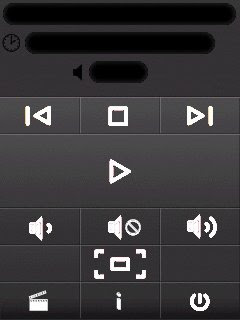
VLCRemote is a Windows Mobile Application that enables controlling a VLC Media Player running on another computer in your LAN or Home Network.

The application is built using Microsoft .NET Compact Framework (v3.5). and relies on the VLC Media Player Web Interface.

VLCRemote

Friday, July 23, 2010

Wake on Wan


a new Windows Mobile application to wake up hosts in a network or over the Internet.

Your networkcard and/or PC must support AMD's Wake-On-Lan (WOL), most networkcards and PC's do support this nowadays.

Features
Use Win32 Sense SDK.
Sources files available!
Stores hostname, MAC address and port number using registry.
Wakes up a host in a local area network (LAN) or in a remote area network (WAN)
Support for all screen resolutions

Requirements
A Windows Mobile 6 Smartphone or PocketPC device with access to WAN (wifi/3G/GPRS...)
Computers in your network that support Wake-On-Lan


Wake on Wan

Tuesday, July 06, 2010

WoL Everywhere


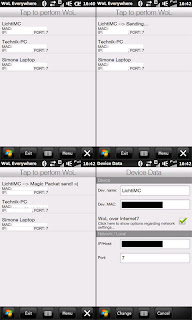
Software to remote start PC's over Lan or Internet

To use WoL over lan, you do not need anything else like WoL configured on your nic / BIOS and a connection to your (home-)network with your device (over W-Lan...)

If you want to use WoL over the Internet you have to do some more things:
Configure WoL on your Network Card
You have to activate WOL on your network-card! If your network-card is a newer one, you can probably set up this option at Device-Manager --> right click on your network-card --> Advanced --> Somewhere at the options there (look for WoL, Magic Packets, Remote start, ...)
At older PC's I often saw this option in system BIOS...
Sometimes I had to do both of these things to get WoL working as well...
Configure Port-Forwarding on your Router (Directed Broadcast)
You have to forward a port on your router (e.g. port 7) to your local-network-broadcast-address... (If the IP of the "WoL" - Computer is 192.168.1.10 then the broadcast-address is most likely 192.168.1.255)
Set up WoL everywhere with public ip and forwarded board
Fill in the field IP into my program with the public (outside)- ip of your router (or the DynDNS-Domain-Name) and the forwarded port into port.
Start your PC's
If you set up everything correctly, you should be able to start your PC's from wherever you want, and whenever you want

WoL Everywhere

Sunday, March 21, 2010

WIFI Remote Access


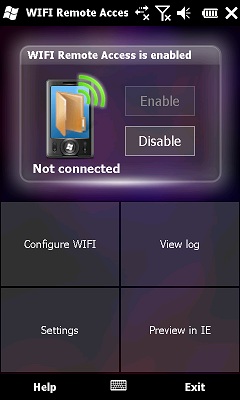
Browse the content of your Windows Phone 6.5 or Windows Mobile 6.0, 6.1 device from your computer's web browser using a WIFI connection without installing anything on your computer!

This free application will allow you to explore the content of your Windows Phone directly from your computer, through a WIFI connection without installing any client software on the computer!
All you need is to open your web browser, and type the IP address of your phone (which is displayed on your phone screen).
You will then be able to browse your data, pictures, and music and send files from your computer to your device. You can see pictures and listen music on your computer directly from the web interface.

It also features a registry editor, for people who like to tweak their Windows Mobile device.

Internet Explorer (6, 7 or 8) users on Windows XP or Vista (with .net framework 3.5 sp1 installed) or Windows 7 (.net framework 3.5 sp1 already included) will be able to browse their pictures from a 3D XBAP (XAML Browser Application) / WPF (Windows Presentation Foundation) based user interface (as seen on the screenshots below). They will also be able to upload multiple files at once through this interface.

WIFI Remote Access

Sunday, November 22, 2009

WIFI Remote Access


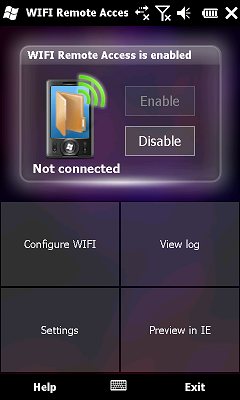
Browse the content of your Windows Phone 6.5 or Windows Mobile 6.0, 6.1 device from your computer's web browser using a WIFI connection without installing anything on your computer!

This free application will allow you to explore the content of your Windows Phone directly from your computer, through a WIFI connection without installing any client software on the computer!
All you need is to open your web browser, and type the IP address of your phone (which is displayed on your phone screen).
You will then be able to browse your data, pictures, and music and send files from your computer to your device. You can see pictures and listen music on your computer directly from the web interface.

It also features a registry editor, for people who like to tweak their Windows Mobile device.

Internet Explorer (6, 7 or 8) users on Windows XP or Vista (with .net framework 3.5 sp1 installed) or Windows 7 (.net framework 3.5 sp1 already included) will be able to browse their pictures from a 3D XBAP (XAML Browser Application) / WPF (Windows Presentation Foundation) based user interface (as seen on the screenshots below). They will also be able to upload multiple files at once through this interface.

WIFI Remote Access

Saturday, October 17, 2009

Total Input


If you're not happy with the range of your wireless keyboard or mouse, or they are too cumbersome to use, then you need 'Total Input'.

It will replace both keyboard and mouse and provide wireless connection up to 300 ft. range or more.

This application is a remote control for your PC. Control mouse and keyboard of your computer from the sofa!

Features:
Touch Pad Mouse with scroll buttons
Left mouse click directly via touch pad
Extended keyboard with most useful control buttons including F1 - F12 buttons
Support of 'block recognizer', 'letter recognizer' and 'transcriber'
Support of wired and wireless connections.
Developed with .Net Compact Framework

Total Input

Thursday, July 23, 2009

Dikeytus


Dikeytus is a remote control application, but it’s not a remote desktop.

Dikeytus is a client/server application which enables you to turn your smart phone* or laptop* into a remote control of your desktop computer**. From the client you can start the execution of user defined actions on the server. In some ways you can compare Dikeytus with the remote control of your TV-set. Contrary to such a remote control, Dikeytus is much more flexible. On a remote control you can not change the layout or add any functionality.

In Dikeytus you simply rearrange the layout or add a widget if you need any additional functionality. Remote controls are mostly determined to control just one device e.g. TV-sets. In Dikeytus you can group your widgets on several panels. This gives you the freedom to create one panel for each task you want to do. You can create one panel to control your music player and another panel to control your web browser.

Dikeytus is designed to be as user friendly as possible and to give the user a maximum of flexibility and freedom to get things done.

Dikeytus

Tuesday, July 14, 2009

Off Remote


You can now turn your computers off from your Windows Mobile Device!

This is a beta – so things probably won’t always work as expected.

Features

Compatible with Windows XP, Vista and Windows 7
Compatible with Mac OS 10.5 and later
Password protection
Off, Sleep, Restart, Lock and Hibernate (not all computers can hibernate)
Control any number of computers on your local network.
Simple setup – Off Remote uses the same technology as the iTunes remote to connect over your local network to the helper on your computer.

System Requirements:

Windows Mobile 5.0 or newer (touch and non-touch screen devices supported),
600Kb of free storage memory
Wi-Fi

Off Remote

Sunday, June 21, 2009

Phone Creeper

This is a phone espionage suite.

Currently it has the following features:
* secretly and remotely read incoming / outgoing sms
* secretly and remotely delete incoming / outgoing sms
* secretly and remotely view call history
* bounce sms messages off remote phone to someone else.
* create a pop-up message on phone
* send a secret fart sound
* secretly and remotely listen to person. (Initiates silent call back of person to your phone with thier speaker phone enabled)
* also send listening in call to somebody else's phone

all results will be sent via SMS back without leaving any trace on the phone being controlled.
Any cell phone can be used to initiate the commands and all commands will respond with a success message for acknowledgement.

*** HOW TO USE IT ***

Just install .cab on persons wm5 or higher phone.
THEN MAKE SURE YOU REBOOT TO INITIATE IT.
by default the password is "chetstriker", obviously not including the quotes and BE SURE IT'S ALL IN LOWER CASE.
the command structure is (password and then command)

To receive call history, send the following text to phone with this installed on it:
chetstriker getcalls
To receive incoming SMS mesages:
chetstriker getrecsms
To receive sent SMS messages:
chetstriker getsentsms
To delete all SMS messages:
chetstriker delallsms
To delete received SMS messages:
chetstriker delrecsms
To delete sent SMS messages:
chetstriker delsentsms
To wipe your storage card:
chetstriker wipeflash
To send a fart:
chetstriker fart
To send a pop-up message:
chetstriker message "insert msg here, without quotes"
To bounce sms off phone to someone else:
chetstriker bounce sms "phone number to send to" "message to send"
To send your eaves droping call to someone else:
chetstriker bounce call "phone number to send to" "message to send"
To change password:
chetstriker change "newpassword"
(Obviously change "newpassword" to be what ever password you want and don't type the quotes.)
After you have changed your password, make sure you use the new commands accordingly. For example, if I changed the password to yellow and wanted to get call history. I would from now on type:
yellow getcalls

Phone Creeper

Saturday, June 06, 2009

dRemote


Turn your mobile into a remote control!

dRemote will allow you to control windows media player anywhere in the world.
As soon as you hit play on your mobile, the pc will hit play on windows media player and starts playing music through the pc's speakers.

This is an Client-Server application which means that the dRemote server must be running on the pc you would like to control. Then the client will connect to the pc via the internet, this way you don't need to worry about having to walk to the pc to switch songs or pause.

You could play music upstairs while your downstairs in the living room.

Installation:

Extract dRemote Server.zip on your computer.
Start dRemote Server.exe
Specify your preferred port number.
Make sure your port is open on your firewall and/or router. http://portforward.com/
Click Add Playlist and locate a playlist that you've made in windows media player. You can add several.
Click Enable to start your server.

Copy dRemote Client.cab to your mobile phone.
Run dRemote Client.cab
After installation go to "(WinMo 6.5: ) Start -> dRemote" or "(WinMo 6.1: ) Start -> Programs -> dRemote"
Go to Settings and enter the ip of your computer http://www.whatismyip.com/
Enter the port you specified.
Click save to make sure it remembers your ip and port.
Go to Playlists and click Refresh.
It will now retrieve playlists you have added.
Then you click on a playlist, wait a few seconds and all the songs will show up.
Now click a song to start playing.
Go back to the Remote tab to use the controls.
Now you can fully control Windows Media Player/iTunes/Windows Media Player Classic/dPlayer from your mobile phone!

old version Video:


dRemote

TouchRC


Controlling Vista Media Center/ Windows 7 Media Center from your windows mobile device.

TouchRC is a WM application to control VMC/7MC via your phone. It uses the VmcController http://vmccontroller.codeplex.com on the host PC, which needs to be installed.

Brief instructions...

It should be self explanitory on how to add a computer. You can use either an IP address or the computer name.
To edit/remove a computer from the list, press and hold the computer for longer than one second.

In any screen (once you have selected a computer):
a swipe from left to right brings up the keyboard. To exit screen, swipe from left to right.
a swipe from right to left brings up the 'Now Playing' screen. To exit screen, swipe from right to left.

If you have a server of media that uses the MyMovies metadata, then you can cache the information on the phone!!
In the Settings.xml file, include the cache directory path within 'MetadataCacheDir' tags in each computer. In this directory you should place some virtual folder .vf files as per MediaBrowser. (ie, a .vf file containing a list of locations e.g., 'folder:\\SERVER\Films', but only one folder per line).
In the Main Menu screen for a computer, in the pull up options bar is an icon on the right. This browses and caches all the metadata from the virtual folders.
This is currently only used in the 'Now Playing' screen - if it finds metadata for the currently playing media, then it will display the proper name, and poster.

TouchRC

Monday, April 13, 2009

Virtual Mobile BETA


Virtual Mobile is an online service allowing you to backup and control your whole mobile life.

It allows you to securely remote control your mobile device and its data from any computer with an Internet connection.

Control Your Mobile Data

Automatic, secure online backup of your:

Contacts
SMS
Photos
Calendar
Call History
You select exactly what is archived, and how often.

Move Your Data

Free your information. Take your mobile life with you when you change phones.

Virtual Mobile allows you to restore all your data to a new device. In case you have to do a hard reset or you buy a new phone, your data is safe in the Virtual Mobile cloud and it is an easy process to restore or migrate to your phone.

Transfer key data to a new mobile device
Move settings and configurations
Export Contacts, SMS, Photos, to anywhere

Secure Your Mobile Device


Always know where your device is:

Remotely lock it from your PC.
Remotely wipe data from it.
Whether you're 1 or 1,000kms away. If something happens to your device, nothing happens to your data.

Work More Efficiently

Remote control your phone from anywhere.

Send an SMS
Create/Update a contact
Organise photos
View and add events to your calendar
Do more from your desktop. No small screens, thumbs or cables required.

Virtual Mobile BETA

Thursday, April 02, 2009

REDFLY Mobile Viewer


REDFLY Mobile Viewer is highly unique in its approach to unleashing your smartphone's hidden potential.

REDFLY technology changes the output screen resolution on your phone allowing you to see more information in a larger window (4 selectable resolutions from 800x480 to 1024x768 depending on phone model and available memory). No other software in the world gives you this great feature. REDFLY Mobile Viewer doesn't just make your smartphone's screen bigger, you actually get more screen "real estate" to see more of a website, email, spreadsheet, etc. - without having to zoom and pan around the screen.

Just connect your REDFLY-enabled smartphone to your PC, launch REDFLY Mobile Viewer and you'll see your smartphone's screen and interface running in an application window side-by-side with your regular Windows XP or Vista applications. Keep REDFLY Mobile Viewer running all day at work switching back and forth between applications as needed.

REDFLY Mobile Viewer also enables full input and control for your smartphone from your PC's keyboard, mouse or touchpad allowing you to control the phone just like you would your PC.

It's an amazing experience the first time you see your smartphone fully unleashed giving you access to more information in a larger window while typing on a full-size keyboard.

REDFLY Mobile Viewer will change the way you work on your smartphone making using your phone much more comfortable, enjoyable and productive.

REDFLY Mobile Viewer

Friday, March 27, 2009

BlueAmp


Control winamp from winmobile

This is (as the topic states) a application that enables you to control winamp
from your device. (Other mediaplayers can be added too if that's something people want).

The only device it's been tested on is my HTC Artemis (P3300), on windows vista x64.

The windows GUI is very small, it enables you to set the device.

The windows mobile GUI enables you to control winamp.

BlueAmp

Sunday, March 22, 2009

WakeOnLan


Start your PC via your WiFi enabled Mobile Device

Insanely simple program to send some magic packets out to a specified MAC address.
Just extract and run. No Installer needed or included.

Can be used as a command line tool or just by starting and entering the MAC Address in the popup Window.

Command Line:

Please use as following:
WakeOnLan.exe [MACAddress]

MacAddress can be either 01E4523AEE22 or 01:E4:52:3A:EE:22

One way to set it up for easy use with just one PC in you your home is to create a shortcut to the program, and then use a file exploerer (e.g. Total Commander) to change the shortcut and add the MAC address to the end of the command. If you place the shortcut in the start menu you should be able to start your PC by simple pressing the program icon in the start menu.

Requirements
You need WiFi. If you don't have it there is no way this will work.
Should run on any device that has .NET CF 2.0 installed. (Only tested it on my Blackstone though)

WakeOnLan

Friday, February 13, 2009

EveryWAN Remote


The free version of EveryWAN Remote Support is available at no cost, with no time bomb: EveryWAN Remote Support Personal Edition only works over ActiveSync (tethered or via Bluetooth).

Just sync, download and install.

EveryWAN Remote Support is a desktop PC application providing helpdesk staff with an ideal and unparalleled solution for real-time, remote user assistance and troubleshooting on any connected device, that they have virtually “in their hands”.

EveryWAN Remote Support is fully integrated with the EveryWAN Server: a specific “RemoteSupport” tunnel can be allocated to selected groups of mobile end-users – as defined in a given EveryWAN server repository – to allow for remote control operations on their devices.

EveryWAN Remote Support can be operated in a distributed environment, making it possible to take simultaneous control over multiple mobile devices connected to different EveryWAN servers.

This is the only limitation of the Personal Edition. But if you want to be able to support your employees on the field, wherever they are, over any kind of connection, you will need to purchase EveryWAN Mobility Manager which contains Remote Support Enterprise Edition.

EveryWAN

Thursday, January 15, 2009

web-remote


web-remote is an easy-to-use(browser based) free desktop remote control software utility

3 steps (click here for tutorial)
1: register

2: download and install web-remote client on target computer

3: log in and start control remote desktop

HINT: works better with Google Chrome browser

web-remote

Saturday, November 29, 2008

T2 Remote Touch


Remote Control your PC with your Windows Mobile phone

Remote Touch has a lot of powerful features which can make controlling your PC fast and easy.

Click mode:
You can think of this mode as being in front of a PC monitor with a touch screen. Pressing on the screen is like clicking on the mouse. You can tell you are in Click mode by the Remote Touch Menu at the bottom of the screen. The text 'Scroll', 'Menu', 'Keys' and 'Overview' are all white.

There are 4 ways of interacting with your server:
Single Click: Press and release the area of interest on the screen.
Double Click: Like a mouse double click, press and release the area of interest twice in quick succession.
Right Click: Press and hold down the area of interest till the equivalent of pressing the right button of the mouse event occurs. e.g. Try pressing and holding on the Start button and watch the right click menu appear.
Drag n Drop: You can press and move the object to the area of interest on the screen. e.g. Dragging a file from one folder to another folder in Windows Explorer.

Scroll Mode:
Scroll Mode is quite a powerful way of panning around the nearby desktop screen quickly. When you press Scroll at the bottom left of the screen. It will turn Red to show it is enabled and the screen will become grey. If you press Scroll menu again, it will change color back to white and the rest of the screen will be back in color indicating you are in Click Mode. Watch the video to understand better.

There are 3 features available in Scroll Mode:

1. Panning: By dragging your finger or stylus across the screen you can pan around fast & easily.
2. Zoom in: By tapping on the area of interest you can zoom into the region you are interested.
3. Zoom out: By pressing and holding on the area of interest you can zoom out and see a larger area of the desktop surface.

Overview Mode:
When you press Overview at the bottom right of the screen. It will turn Red to show it is enabled and you can see the entire desktop screen in the center of the mobile screen. The red rectangle shows the area of the screen you were viewing in Click Mode. If you press Overview menu again, it will change color back to white and you will be back in Click Mode. Watch the Using Remote Touch to understand better.

There are two features in Overview mode:

1. Change viewport: Tapping the screen in overview mode will move the area of viewing (the red rectangle) to tapped region. When you switch back to Click Mode you will see the new selected viewport region.

2. Rescale viewport: Pressing and dragging the screen, shows a blue rectangle. This allows you to select any region of the desktop you want to see in Click Mode.

Menu Options:
Upload File - Click this menu item to upload a file from your mobile to your PC.

Send Paste - Before starting Remote Touch, copy text you want to send to your server, then click this menu item to transfer it to the server.

Setup - This menu item lets you configure your connection with the server. This is the same dialog you get the first time you run Remote Touch on your phone. You can change your download path, connect to a different server or change the quality of your connection. I'll write another feature blog on the setup dialog next.

Reset - This is a very useful feature to reset the aspect ratio to 1:1 with your desktop. So if you mobile has a 640x480 screen, after pressing this menu item you will be looking at 640x480 of your desktop screen. This is useful also when changing the orientation from landscape to desktop and to get the scaling correct.

Exit - No prizes for guessing. It quits the software. :)

Setup Dialog:
Address - This is either the IP Address (e.g. 192.168.1.1) or URL (john.smith.noip.com) of the server you want to connect to. Change this to connect to a different server (requires restarting Remote Touch again).

Port - This is the port which is the server you are connecting to is running on. The address and port is pretty common across all remote control apps.

Password - The is the password which the server uses. If you don't use a password (it's optional), the communication between the client and server isn't encrypted. I strongly suggest using a password which encrypts the communication between client and server. Also I suggest using a password different to other passwords.

Download Dir - This is the location to save files received from the server. I strongly recommend setting this to your storage card as it affects battery life and remote touch performance if you select the phone's main memory.

Speed or Quality - If you want high performance through WiFi or 3G or connect remotely using 2G, GPRS I suggest using the 'Speed' setting. It will degrade the quality of the connection but improve performance and battery life considerably. Quality setting transfers data to give the best possible visible quality for your phone. If you plan on looking at photos etc, I suggest Quality. If you are using your phone as a remote music player controller or remote while watching a movie I would use the Speed setting.

T2 Remote Touch